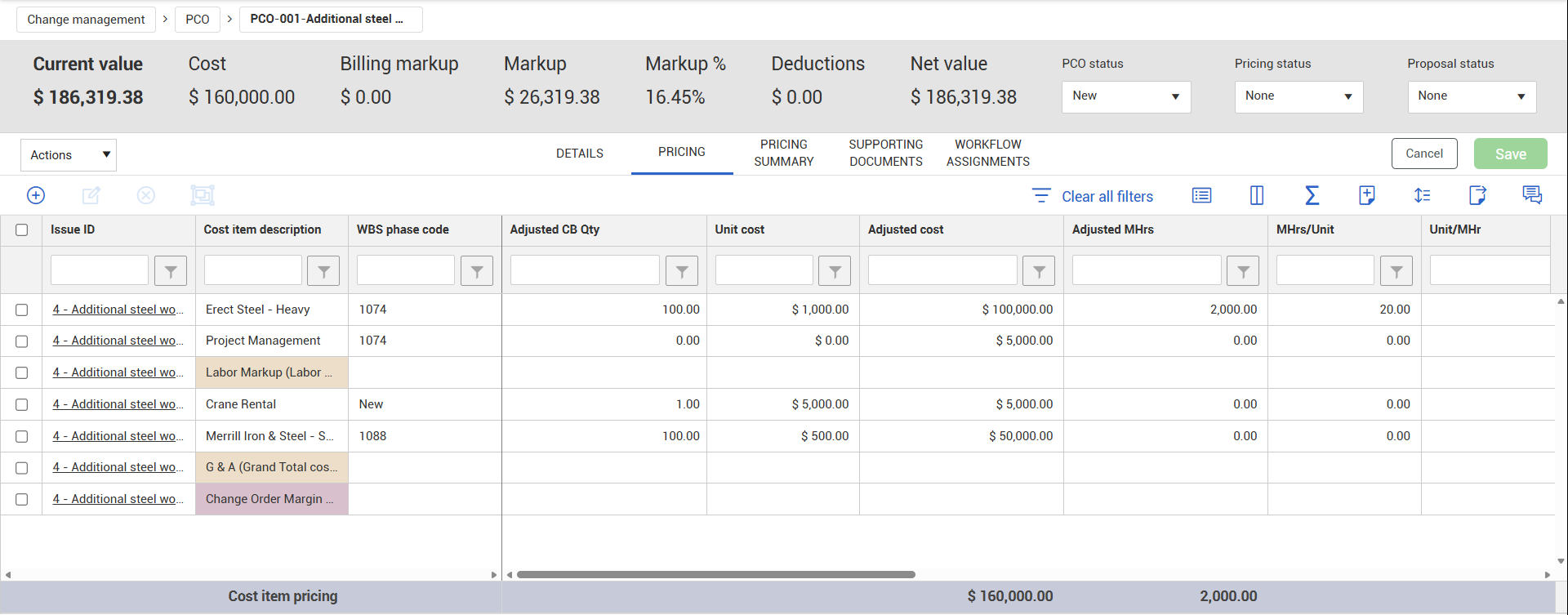
PCO Pricing tab

Pricing for a PCO originates from its assigned issues. When you open a PCO, the Pricing tabs show the values inherited from those issues, along with associated vendors and contracts. This automatic inheritance of issue values occurs when the PCO is created.

The PCO includes two tabs for pricing:

  • Pricing - Shows the inherited pricing details. Values on this tab are read-only.

  • Pricing Summary - Shows pricing subtotals organized by cost pricing section, along with any amounts entered as ROM, Estimate, Proposal, and Agreed values. Values from the Pricing tab are displayed in the Estimate column and cannot be edited.

Pricing tab

The Pricing tab shows the pricing established at the issue level. You cannot edit the inherited values on this tab. You can only add an unassigned pricing item, if needed. To make detailed pricing updates, return to the associated issue.

Pricing Summary tab

The Pricing Summary tab allows you to make lump-sum adjustments to the PCO total. When reviewing or adjusting pricing here, keep in mind the following:

  • Value precedence follows the same order as on issues:

    • Estimate values take precedence over ROM .
    • Proposed values take precedence over Estimate.
    • Agreed values take precedence over Proposed.
  • The PCO’s current value is the sum of the cost pricing sections including Labor, Equipment, Materials, Vendor, and Time-related overhead totals.

Update PCO values with issue values

If Change is not configured to automatically update value changes to higher levels, you can manually update the PCO Pricing Summary tab with new pricing and associated vendor data from your issues. Select Update values > Pull values from issue from the Actions menu.

For example, you have a PCO with a total price of $10,210, totaled from Estimate values in the Pricing summary on the PCO’s Pricing tab.

As your field engineer assesses things out in the field, he determines the estimate to be a little low, so he changes one of the assigned issue’s Estimated subtotal to $12,000. You can update the PCO with the new pricing by selecting Pull values from issue from the Actions menu.

You will receive a prompt asking if you are sure you want to update the PCO’s values. When you select Yes, the PCO’s Estimate values update and the PCO’s new Grand total updates to $12,000.

Pricing changes made on the PCO do not change the pricing of the assigned issues.
Pricing changes made on the issue's Pricing Summary can only change pricing on the related PCO if you select Update PCO values with issue values from the Actions menu, or you have configured Change to automatically update value changes to higher levels. Values inherited from the issue Pricing tab automatically update on the higher levels of PCO and CCO.

The ability to automatically update values from higher or lower levels is configured in project Settings > Configurations > Pricing configuration. When set to automatically update value changes to higher levels or lower levels, any changes made at the issue level are automatically reflected in the PCO. Any changes made at the PCO level are automatically reflected in the issue and CCO.

When the Change is not configured to update values to higher levels, you can manually update values as follows:

  • At the issue level, you can push values to the PCO. If the PCO is associated to a CCO, the value is automatically pushed to the CCO.

  • At the PCO level, you can push values up to a CCO or pull values down to an issue.

  • At the CCO level, you can pull values from the PCO. If the issue is associated with a PCO, the value is automatically pulled from the issue.

When Change is not configured to update values to lower levels, you can manually update values as follows:

  • At the issue level, you can pull values from the PCO. If the PCO is associated to a CCO, the value is automatically pulled from the CCO.

  • At the PCO level, you can push values to the issue or pull values from the CCO.

  • At the CCO level, you can push values to the PCO. If the issue is associated with a PCO, the value is automatically pushed to the issue.

If you make a change to the pricing at any level, the Pricing pages at the other levels show a banner warning that the updated values are not reflected at all levels. For example, if a pricing change is made at the issue level, the banner shows at the PCO and CCO levels. To update values, go to the Actions menu. Then select whether to push values down or pull values up.